Seamless Prestashop Integration
for e-commerce and SMEs
- Fully Automated Fulfilment : PrestaShop orders auto-import and auto-book with your preferred carriers—no manual entry required.
- Real-Time Prices at Checkout: Show live Ecoparcel delivery rates at your checkout, priced with your account rates.
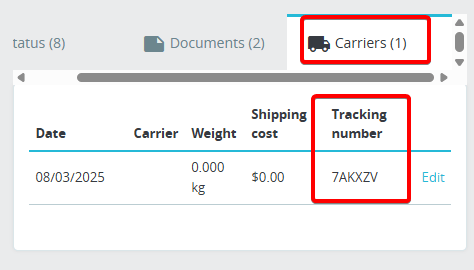
- Instant Shipment Status: Orders are automatically updated to “Shipped” and tracking numbers are added in PrestaShop as soon as your order is paid.
- Centralised Order View: Manage all unfulfilled PrestaShop orders in one intuitive Ecoparcel dashboard.
- Fewer Support Queries: Customers track their parcels via clickable tracking URLs directly in PrestaShop.
- Optimised Carrier Rates: Leverage cheaper shipping rates and generate labels in a single click.
- 5-Minute, No-Code Setup: Install the Ecoparcel PrestaShop module and be dispatch-ready without any developer help.

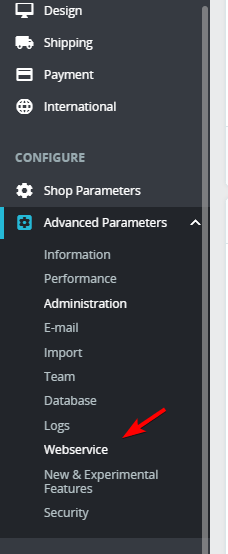
Open PrestaShop Settings
- In your PrestaShop sidebar, navigate to Advanced Parameters > Webservice.
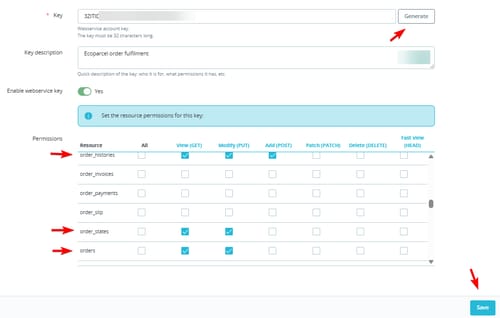
Generate & Configure the API Key
- On the Webservice page, click Generate to create a new 32-character key.
- Toggle Enable webservice to Yes.
- Under Resource permissions, set permissions as follows:
- order_histories: View (GET), Modify (PUT), Add (POST)
- order_states: View (GET), Modify (PUT)
- orders: View (GET), Modify (PUT)
- Click Save.
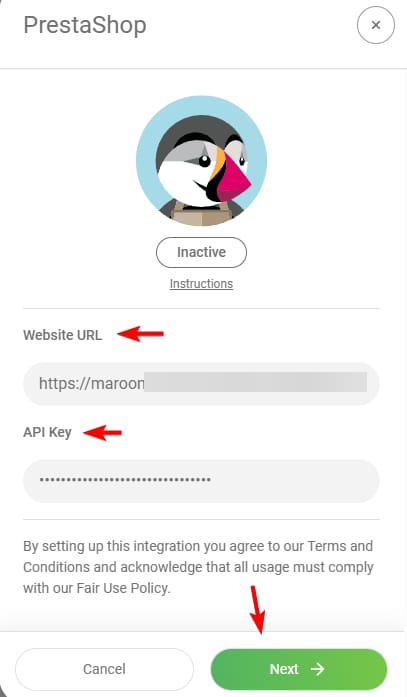
Fill in Your Store URL & API Key
- In the Ecoparcel Platform, go to Integrations -> PrestaShop.
- When the modal opens, enter your full shop URL (including
https://) into the Website URL field. - Paste the 32-character API Key (you’ve generated this in PrestaShop) into the API Key field.
- Click Next to continue.
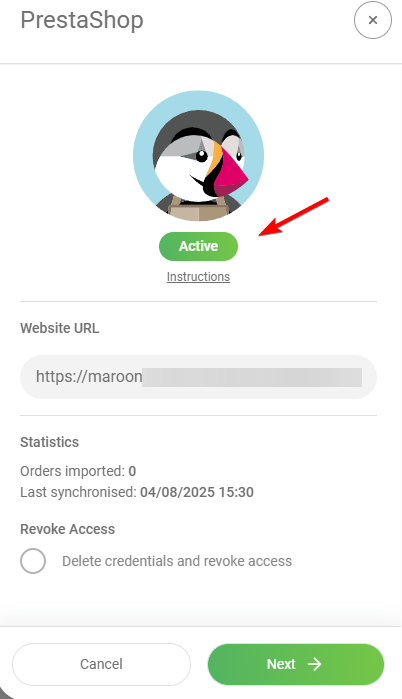
Verify the “Active” Status
- Once credentials are accepted, the status badge will switch to Active.
- Check your store URL, plus stats like Orders imported and Last synchronised.
- Click Next .
Status and Tracking Updated
- Once the order is marked as paid in Ecoparcel, the integration will automatically:
- Set the PrestaShop order status to Shipped (Status ID: 4).
- Add the Tracking number to the PrestaShop order.
- Your customers will then receive the shipment notification and tracking details.
Show live rates at your checkout
- In Ecoparcel, open Integrations -> PrestaShop and copy your Connection key (shown once the integration is Active).
- Download the Ecoparcel Shipping module and install it in your PrestaShop back office via Modules -> Module Manager -> Upload a module.
- Open the module's Configure page, paste your Connection key and save. The Ecoparcel carrier is created automatically.
- Your buyers now see the live Ecoparcel rate at checkout—best value, VAT included. Keep product weights filled in, as they drive the pricing.